If you've already used Catalogly to build your layout, you're 90% of the way there. But sending a raw PDF via email is a gamble—large files often bounce, and they are notoriously difficult to read on mobile devices.
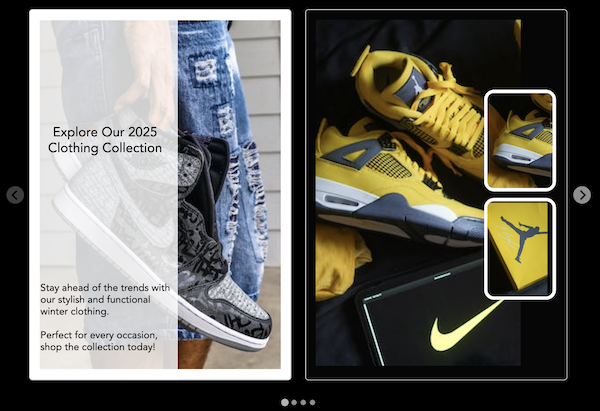
The "Flipbook" feature in Catalogly takes that same PDF data and generates a web-based, page-turning experience. Here is how to convert your file and what the final result looks like for your customers.
Why bother with a Flipbook?
A PDF is a static file; a flipbook is a live URL.
When you send a flipbook link instead of an attachment:
- You bypass the 20MB limit: No more "Message too large" errors in Gmail or Outlook.
- The link stays the same: If you find a typo in a price, you fix it in Catalogly and the link stays the same. The customer always sees the latest version.
- Mobile-first navigation: Instead of zooming in and out on a tiny PDF, the buyer just swipes to flip pages.
Step 1: Finalize Your PDF Layout
Before generating the link, ensure your product selection is locked in. In the Catalogly dashboard, make sure you've set your margins and font sizes.
Expert Note: Flipbooks look best when the font is slightly larger than what you'd use for print. Since digital screens vary in resolution, "breathing room" around your product images makes the flipping animation look much more professional.
Step 2: Generate the Link
Once you are happy with the preview:
- Navigate to the Export or Download section of the app.
- Look for the "Flipbook" toggle or button.
- Click Generate.
The app will now host your catalog on our secure CDN. It takes the high-res imagery from your Shopify store and optimizes it for fast loading in a browser.

Step 3: What the URL looks like
Unlike a random file name like export_9921.pdf, your Catalogly flipbook will have a permanent, shareable URL. It typically looks like this:
https://onlinecataloglyapp.com/demo/index.html
The best part? Even if you update your catalog in Catalogly, the link stays the same. You can embed it on your website, and it will automatically pick up all the changes. This means you can safely put this link in your Instagram bio, a LinkedIn message, or a WhatsApp chat with a lead—and it will always show your most current catalog.
See a Live Example
Want to see what an interactive flipbook looks like in action? Check out our demo catalog to experience the page-turning interface and responsive design for yourself.
View Demo Flipbook →Pro-Tip: Best Ways to Share Your Link
Don't just bury the link in a long email. Because it's a web URL, you can get creative:
- The "Update" Email: "We just updated our inventory for the season. You can flip through the live digital catalog here [Link]."
- QR Codes: If you're at a trade show, print a QR code on your table sign. Buyers can scan it and walk away with your entire catalog on their phone—no heavy paper for them to carry.
- Website Embed: You can use an iframe to put this "page-turner" directly onto your Shopify wholesale-info page.
Common Questions
Does the flipbook expire?
No. As long as you have an active Catalogly plan, your flipbook links remain live and accessible to your customers.
Can I still offer a "Download PDF" button?
Yes. Every flipbook can have a corresponding PDF file that looks exactly the same. If a buyer prefers to have the offline PDF for their records, you can provide them with both the interactive flipbook link and the PDF download option.
Ready to Convert Your Catalog?
Converting your PDF catalog into an interactive flipbook eliminates email attachment issues and creates a professional, mobile-friendly browsing experience. Your buyers get instant access with a simple link, and you maintain control with the ability to update content without resending.
Install Catalogly from the Shopify App Store and start sharing beautiful flipbook catalogs with your customers today.