Already have a PDF catalog? Import it into Catalogly and turn it into an interactive flipbook. Use an export from Canva, Adobe Illustrator, InDesign, or any other design tool. You upload the finished file, so the layout does not need to be rebuilt in Catalogly.
Catalogly converts each PDF page into an image, then adds the same product and link layer available on every other catalog page. Your design remains exactly as exported. You decide which products or links to place on top and where they should go.
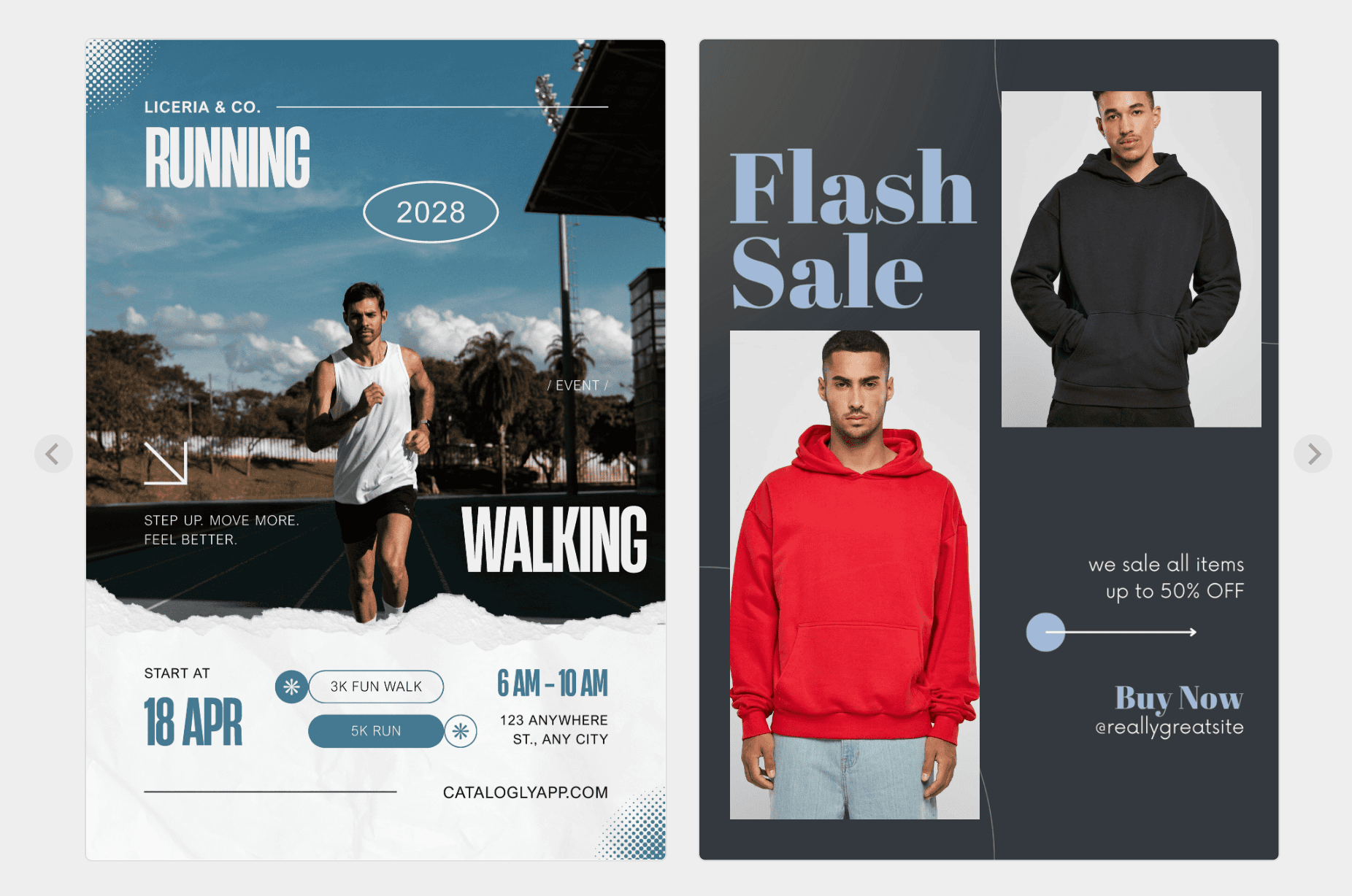
What "importing" a PDF actually does
Catalogly converts each page into a high-resolution 300 DPI image, keeping small print and fine detail sharp. Because the imported page is an image rather than an editable document, its text cannot be selected, searched, or changed in Catalogly. If you spot a typo or need to move an element, make the correction in the original file, then import the revised PDF.
You can still add interactivity without changing the original file. Attach real products to the page or link any area to a destination of your choice.
Importing your PDF, step by step
1. Start a catalog and choose to import
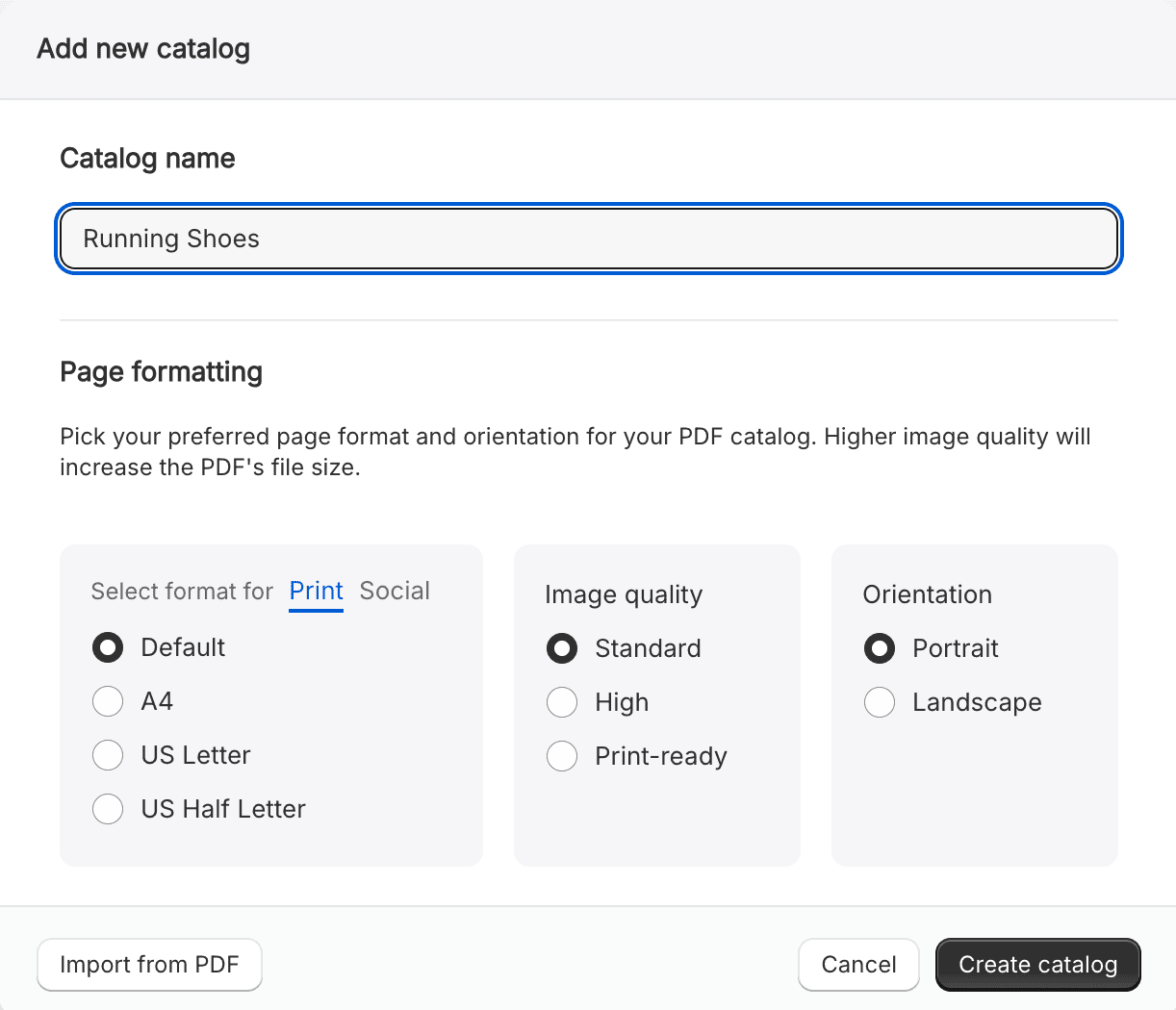
From your Catalogly dashboard, click "New Catalog" and name it as usual. Instead of building pages from scratch, click "Import from PDF" at the bottom of that same screen.
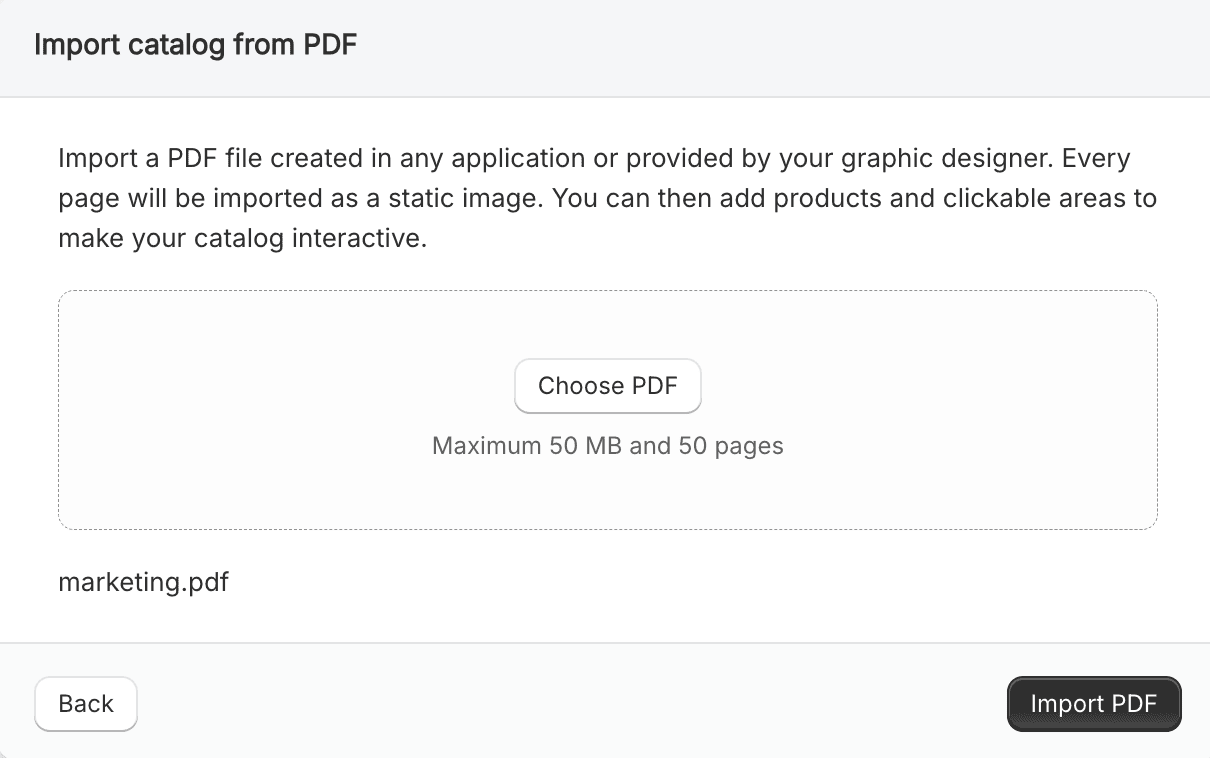
2. Upload the file
Upload a PDF of up to 50MB and 50 pages. It can be a file you exported yourself, one from a designer, or a scanned print catalog.
3. Attach products or add clickable links
Once your pages are in, draw a box over any part of a page you want to make interactive. From here you get two options, and it's worth knowing the difference:
- Attach a product. Choose a store product and place it on that spot. Its photo, name, and price appear there, with a link to its product page.
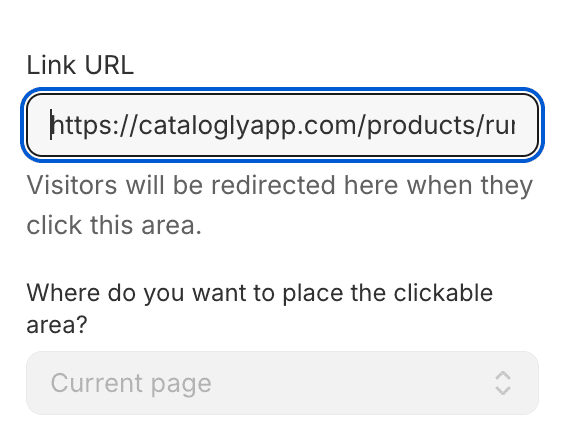
- Add a clickable area. Add a simple link without product data, pointing to any URL you choose.
You can place and resize both options anywhere on the page; neither is locked to a grid. A single catalog can also combine imported PDF pages with regular Catalogly product-grid pages. For example, use a designer-made lookbook page first, then follow it with a product table for the same collection.
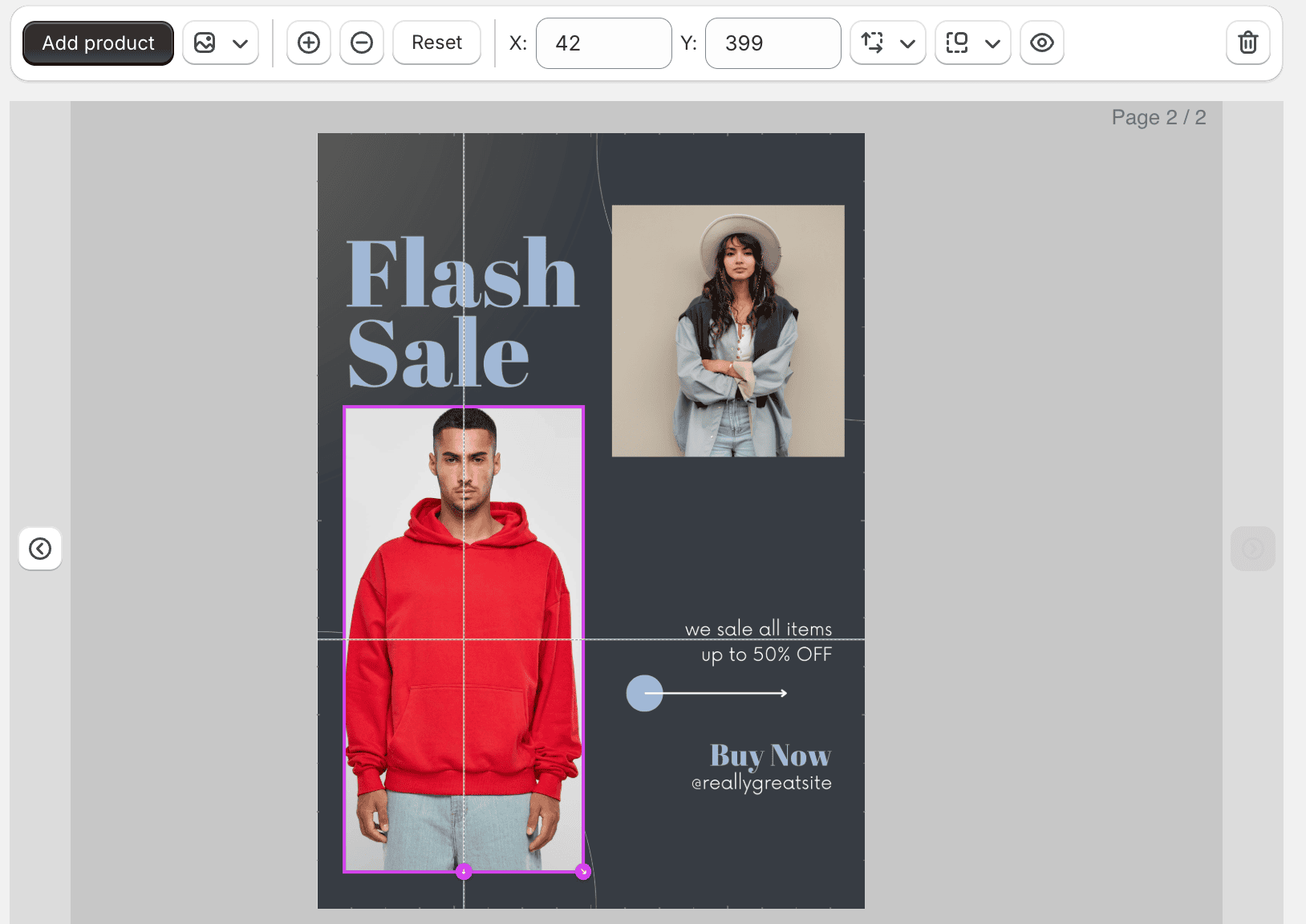
Attach a product to an area on the page to show its photo, name, and price:
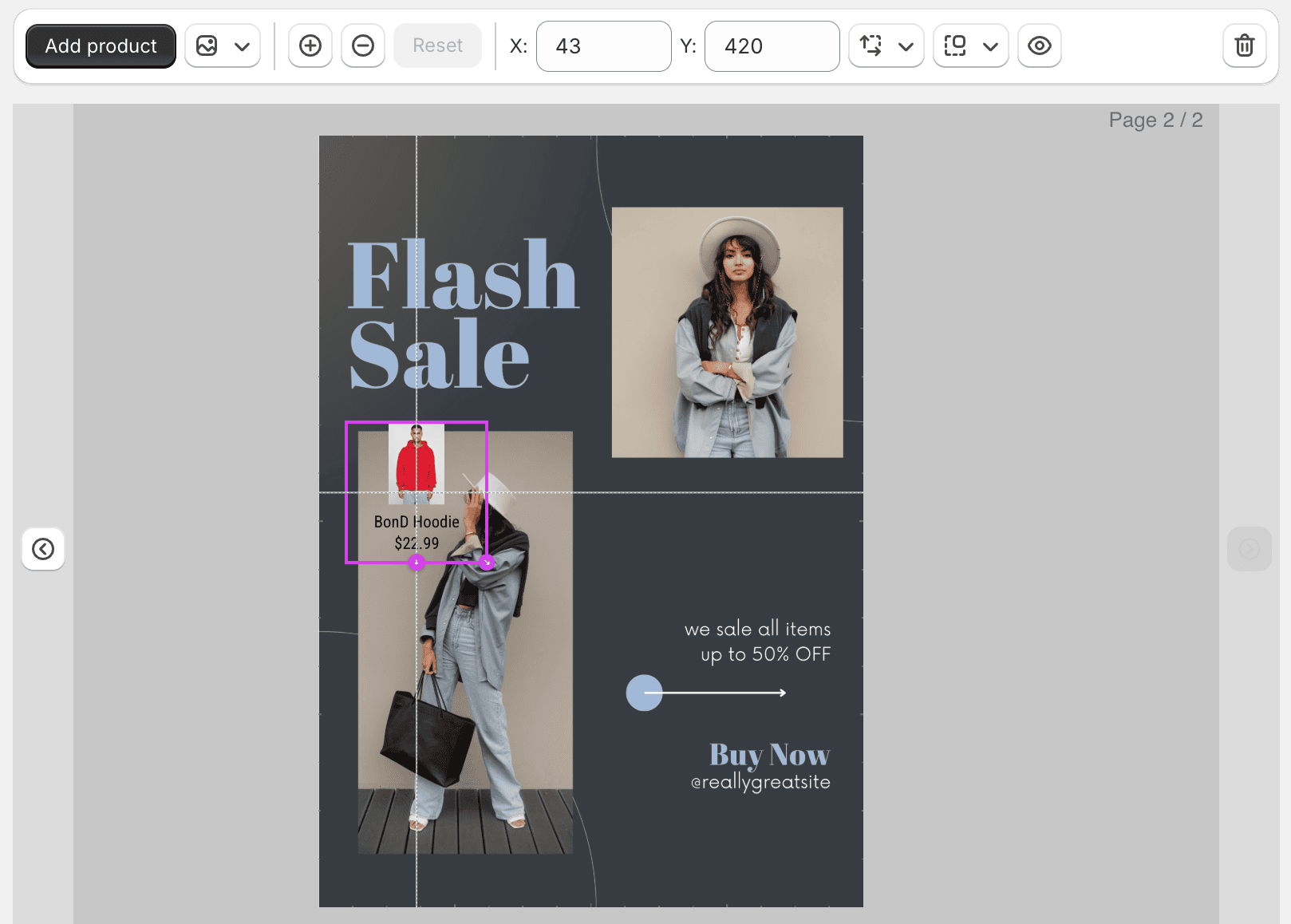
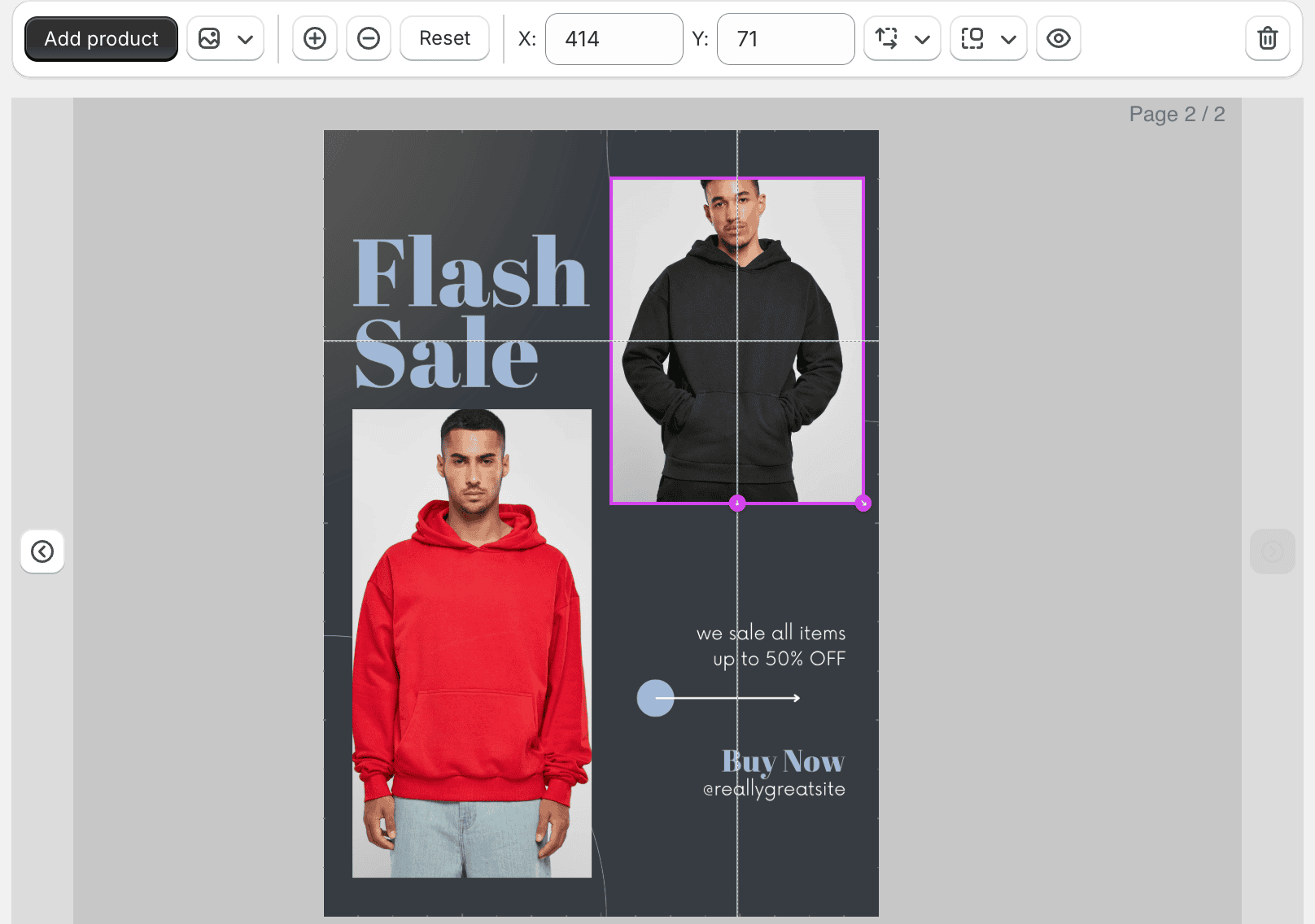
Each hotspot can be resized and repositioned independently, so you can fit it exactly to whichever part of the page has a product photo:
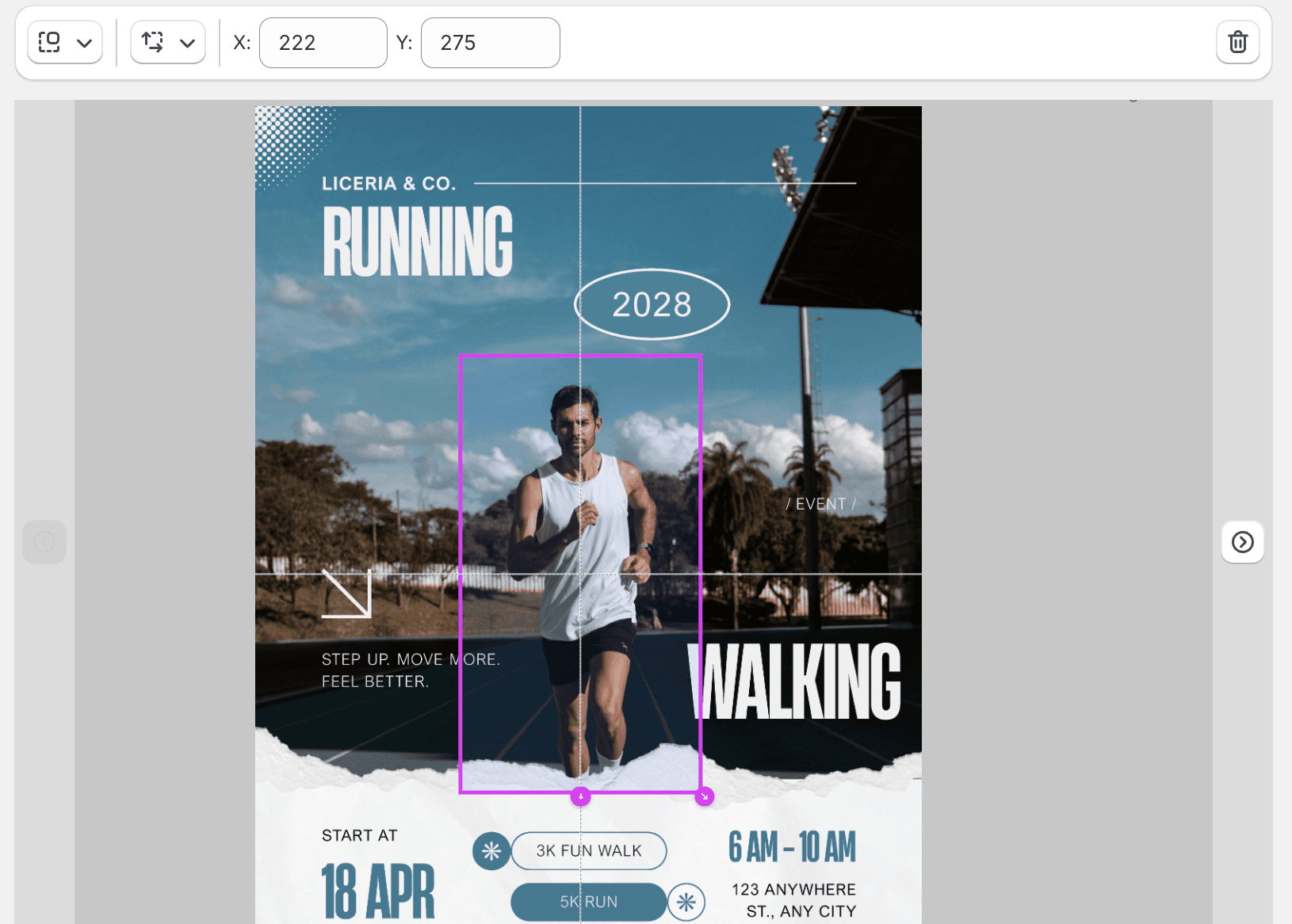
Alternatively, make an area clickable without attaching a product. This works well for an image that represents a collection or needs to lead somewhere other than one product page:
4. Publish and share
Generate your online catalog to get a shareable link. You can send it to buyers, post it, or embed it on your site with an iframe. It opens in the browser, with no app or download required.
Why add interactivity to an imported PDF
- Open it in the browser. Buyers can view the flipbook from the link, without downloading a file first.
- Keep your approved design. Make a static catalog shoppable without asking a designer to recreate it in a new tool.
- Share one version. Send the same catalog link to buyers, sales reps, and customers instead of emailing revised PDF attachments.
Want to compare the available viewing formats? The flipbooks page shows the carousel, page-turning, and single-page scroll views with live examples.
What refresh does and doesn't touch
Refresh does not change the imported page image. The background from your PDF remains exactly as it was when you imported it. To change the design, update the original file and import it again.
Products and clickable areas sit separately on top of that image. When a product's price, stock, or details change in your store, Refresh updates the attached product data. The page background remains fixed.
Building straight from your Shopify products instead
If your product data already lives in Shopify and you do not need to preserve an existing design, you can skip the PDF. Catalogly can build pages directly from your store, and Refresh can update the whole page rather than only attached products. See how that workflow works if it better suits your catalog.
Frequently asked questions
Can I turn a PDF into a flipbook without paying for anything?
Catalogly's Free plan includes up to 2 catalogs. You can import a PDF and see the resulting flipbook before you pay.
If I update prices later, does the flipbook update too?
Yes, for products you attach to the page. Refresh syncs their current price, availability, and product details from your store. It does not replace the PDF artwork.
What can I upload, and is there a size limit?
PDF files only, capped at 50MB and 50 pages. Catalogly turns each page into its own high-resolution image on the way in.
Can someone actually buy something from a flipbook made this way?
Every page supports the same clickable areas as the rest of Catalogly, so you can link any spot on an imported page to a product or any URL you choose.
Do I need to know design to make this work?
No design work is required for the import itself. Use the PDF you already have, whether you created it or received it from a designer. If you later need to change the layout, edit the original file and import it again.
Have a PDF ready to try this on?
Catalogly is a catalog maker for Shopify stores and standalone users. Turn product data or an existing PDF into print-ready catalogs and interactive flipbooks. Install from the Shopify App Store, or get standalone access if you don't sell on Shopify.