It used to be a pain to make a professional PDF catalog for your products.
Not anymore.
With Catalogly, you can build sharp, professional product catalogs straight from your Shopify store data. The key benefit is that your catalogs stay updated with your inventory. This is ideal for sharing with wholesale buyers, using at trade shows, or sending as email attachments.
Here's a simple, step-by-step guide on exactly how to create your PDF catalog — but first, let's clear up a common source of confusion.
What is a Shopify catalog?
A Shopify catalog usually means one of two different things. Shopify's own B2B feature (Settings → Markets → Catalogs) is a price list and product selection you assign to specific wholesale companies — it's not something you can share, print, or send to a buyer.
If what you actually need is a document — a PDF or online flipbook you can email, print, or post anywhere — that's the other kind of "Shopify catalog," and it's what a catalog maker like Catalogly builds directly from your store data.
The rest of this guide covers exactly that: how to turn your Shopify products into a shareable PDF catalog, step by step.
Step 1: Install the App from Shopify
First, find and install the Catalogly app. Go to the Shopify App Store and click "Install App."
After installation, the system will take you directly to the Catalogly dashboard. You are ready to start building your first catalog right away.
Step 2: Start a New Catalog Project
From the dashboard, click the "New Catalog" button.
A form will appear asking for a few key details. Give your catalog a name, like "Spring 2025 Collection," and pick the page orientation you prefer. You can change these basic settings later if needed.
Click "Create Catalog" to open the main builder page.
Step 3: Pick Your Layout and Product Source
In the builder, click "Add New Page" to begin setting up your catalog's content. You will see two important choices:
- Page Template: Choose from over 35 layout options, including grids (4 or 6 products per page) and specialized templates for showcasing single items.
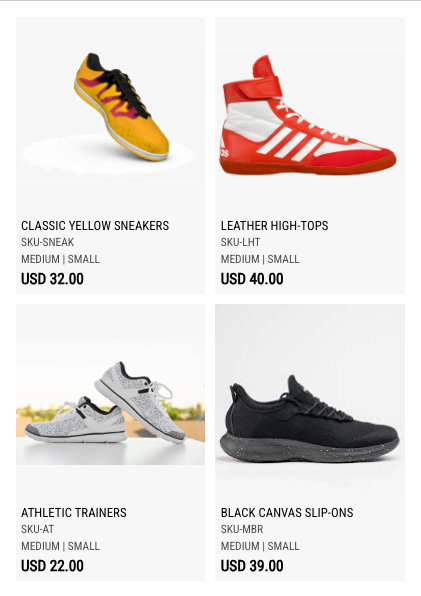
- Product Source: The quickest way to fill the catalog is to use Collection mode. Just select one of your existing Shopify collections (e.g., "Footwear"). The catalog automatically pulls in all products from that collection.
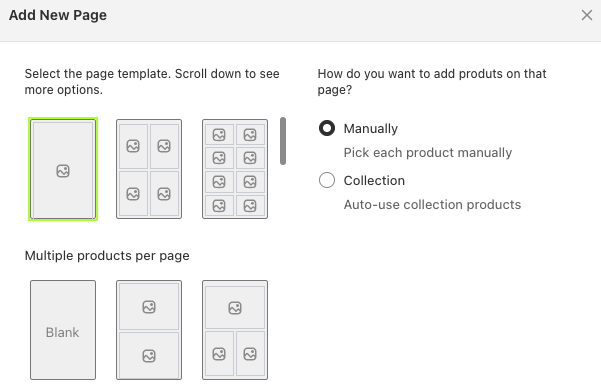
Click "Continue," and your catalog page will be created with those products.
Step 4: Add the Details Buyers Need
Your initial preview will show the basics (image, title, price). To make the catalog truly useful, you need to add more product information.
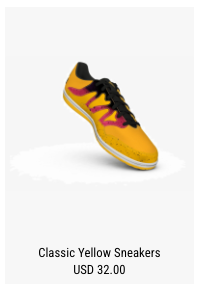
Catalogly lets you easily turn on fields like:
- SKU numbers (for easy ordering)
- Product descriptions (to highlight features)
- Variant tables (showing sizes, colors, and options)
- Multiple price types (wholesale, retail, etc.)
- Inventory status and Barcodes
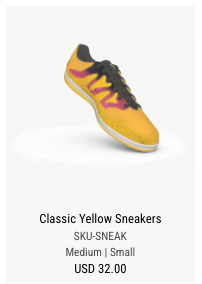
Decide which details—like the SKU and available sizes—are most important for your buyers and toggle them on.
Step 5: Apply a Clean, Professional Style
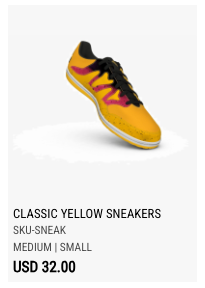
The layout template sets the structure, but now you can polish the look. Use the Styles section to adjust fonts, colors, and spacing to match your brand.
You don't need design software. You can simply select a description template or use the sliders to make your catalog look clean and professional.
Step 6: Generate Your PDF — or a Flipbook
When you are satisfied with your layout, save your work. Go back to your catalog list and click the "PDF" button next to your entry.
The app will take a couple of minutes to process the file. Once finished, you can download a high-quality PDF, ready for printing or digital sharing.
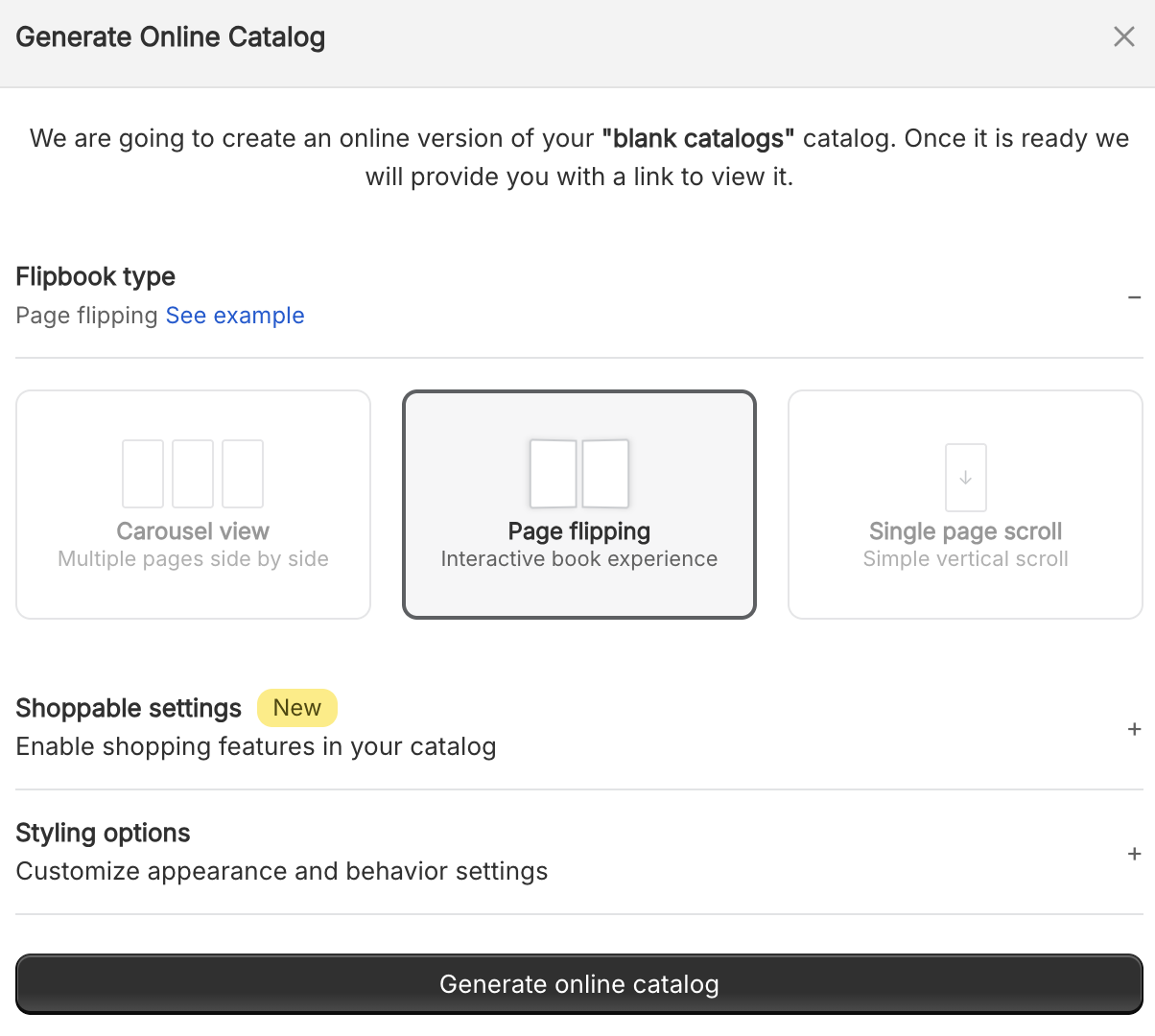
Want a version buyers can browse without downloading anything? Click "Generate Online Catalog" instead—or alongside the PDF—to create an interactive flipbook: a page-turning, shareable link that works on any device. See our guide on converting a PDF catalog into a flipbook for the full walkthrough.
Congratulations!
You've just created a professional PDF catalog for your Shopify store. The entire process took just a few minutes, and you can always keep it updated by refreshing your products and regenerating the PDF whenever needed.
Printing your Shopify catalog
Two settings matter here, and they're independent of each other. Image quality is a tier you choose—Printer quality (300 DPI) is sharp enough for desktop or office printing, while Prepress quality is built to meet the resolution and color standards a professional print shop expects. Print bleed is a separate checkbox ("Show bleed area" in the Settings tab): turn it on and Catalogly extends your backgrounds and images past the trim line, so there's no white edge after cutting. If you're handing the file to a print shop, turn on bleed and export at Prepress quality.
For the full breakdown of print sizes, bleed, and quality tiers, see our PDF catalog print specs.
Quick Tips for Better Catalogs
- Keep it Current: One-click Refresh pulls the latest prices, inventory, and new products (in Collection mode) straight from Shopify—then just regenerate the PDF.
- Click-Through Images: Every product image in your PDF links back to its page in your store, so buyers can go straight from the catalog to checkout.
- Segment Your Buyers: Create separate catalogs for different audiences—one for wholesale pricing and one for retail customers. Need a wholesale-specific format? Our line sheet templates are built for exactly that.
Final Thoughts
Creating PDF catalogs for your Shopify store doesn't have to be complicated or time-consuming. With Catalogly—a catalog maker that works as a standalone web app or a Shopify app—you can generate professional product catalogs, ready to print or share as an online flipbook, in minutes, not hours. Your catalogs stay synced with your Shopify inventory, ensuring buyers always see accurate pricing and availability.
Whether you're sharing catalogs with wholesale buyers, bringing them to trade shows, or sending them via email, you now have a fast, efficient way to showcase your products professionally.
Ready to create your first PDF catalog? Install Catalogly from the Shopify App Store and start building beautiful catalogs today.
Frequently Asked Questions
What is a Shopify catalog?
Two things, usually. In Shopify's admin (Settings → Markets → Catalogs), a catalog means B2B pricing and product access for wholesale accounts—nothing you can hand to a buyer. Outside the admin, catalog means a shareable file: the PDF or flipbook you build with a tool like Catalogly.
What's the difference between Shopify B2B catalogs and a PDF catalog?
Shopify's B2B catalogs control pricing and product visibility inside your store for specific wholesale accounts—buyers only see it after logging in. A PDF or flipbook catalog is a standalone document or link you can email, print, or post anywhere, with no store login required.
How long does it take to create a PDF catalog for Shopify?
With Catalogly, you can create a professional PDF catalog in 5-10 minutes. The actual PDF generation takes less than a minute once you've selected your products and layout.
Can I customize the layout of my Shopify product catalog?
Yes, Catalogly offers over 35 page templates to choose from. You can also customize fonts, colors, and which product details to display (SKU, descriptions, metafields, variants, etc.).
Will my PDF catalog update when I change prices in Shopify?
You can keep your catalog updated anytime by using the Refresh feature to sync the latest prices, inventory, and product information from your Shopify store, then regenerate the PDF. If you use Collection mode, new products added to that collection will appear after refreshing and regenerating.
What formats can I export my Shopify catalog to?
Catalogly exports high-quality PDF files suitable for printing and digital distribution. You can also generate interactive online flipbook versions that work on any device.
Can I print a Shopify catalog?
Two separate settings make a catalog print-ready: bleed, which extends backgrounds past the trim line so there's no white edge after cutting, and image quality, which tops out at Prepress for shop-grade output. Turn both on before exporting if the file is headed to a professional printer.
Can I create separate catalogs for different product categories?
Absolutely. You can create as many catalogs as you need—one for each collection, buyer segment, season, or purpose. This is perfect for organizing wholesale catalogs, seasonal lookbooks, or category-specific brochures.