When prices shift or inventory changes, the last thing you need is to start from scratch to update your catalog. Maintaining data accuracy is critical for sales; therefore, a streamlined process is essential. This article provides a detailed technical breakdown of Catalogly's core synchronization features, enabling you to keep your inventory, pricing, and descriptions perfectly current without intensive manual file management.
Understanding the Difference Between Sync vs. Refresh
To prevent unintended data loss, Catalogly separates updates into two logically distinct functions: Sync Collections (managing product existence) and Refresh Product Details (managing product attributes). The fundamental takeaway here is control: you manage who is in the catalog and what their current details are independently.
1. Sync Collections: Controlling Which Products Appear
This function is dedicated solely to the inclusion or exclusion of products based on their current status within your linked Shopify collections.
This function simply reviews your collection in Shopify and adjusts the list of products visible on your catalog pages.
- Purpose: To align the product lineup in your catalog pages with the current membership of the source Shopify collections.
- Trigger: It is primarily activated when products are added to or removed from a Shopify collection used in the catalog.
- What it updates: Only the product membership (products added to or removed from catalog pages).
- Impact on existing data: Sync Collections is non-destructive to content. It preserves all product data (price, description, images, etc.) exactly as it was, ensuring customizations remain untouched.
2. Refresh Product Details: Updating Specific Data Fields
This function is utilized when the specific product data requires updating. It applies changes to products already residing in your catalog based on the latest Shopify source data.
- Purpose: The objective is to update specific product attributes (e.g., price, image, description) across all products in the catalog using the most current data available in Shopify.
- How it is controlled: Control is highly granular. You, as the user, choose exactly which fields to update via checkboxes.
- What it updates: It updates the selected product data fields (price, SKU, image, etc.) across the entire catalog.
- Impact on existing data: Essentially, it only updates the fields you select. All other fields, including any custom narrative or manually configured content, remain unchanged.
Execution: The Sync & Refresh Process
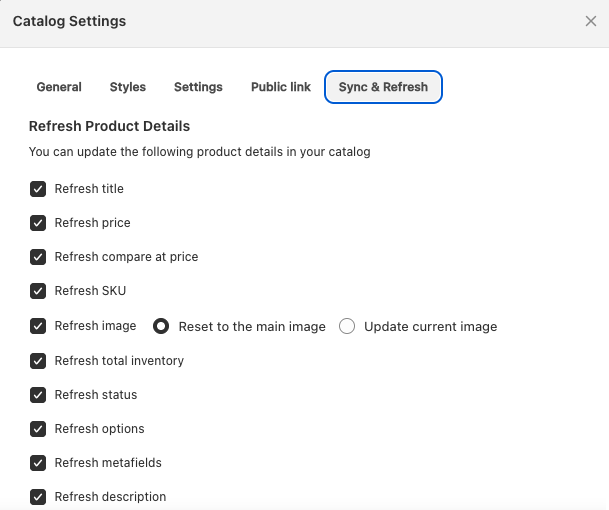
Both synchronization mechanisms are conveniently accessible within the Catalogly Builder interface. Look for the dedicated "Sync & Refresh" tab located in catalog settings.
1. Procedure for Adding or Removing Products (Sync)
Use this when you have executed product lifecycle changes (additions, removals) within your linked Shopify collections.
- Navigate to the catalog settings and "Sync & Refresh" tab.
- Select the "Sync collections" button.
- The system will quickly iterate through all collection-based pages within the active catalog.
- Products newly added to a collection in Shopify are inserted into the corresponding catalog pages. Conversely, products removed from a collection in Shopify are deleted from those pages.
- All existing product details on the remaining items are preserved during this operation.
Guidance: While the main button syncs all collection-based pages simultaneously, a page-specific sync option is available if only one section requires updating.
2. Procedure for Modifying Product Details (Refresh)
This step is necessary when core product attributes—such as pricing, stock levels, or image assets—have been modified in Shopify.
- Navigate to the catalog settings and "Sync & Refresh" tab.
- Within the Refresh Product Details section, you must selectively check the boxes corresponding to the fields you intend to update (e.g., ☑ Refresh price, ☑ Refresh image).
- Critically, ensure that any fields you have manually customized and wish to preserve (e.g., custom descriptions) remain unchecked to prevent overwriting.
- Activate the process by clicking the "Refresh" button.
- Catalogly retrieves the latest data for only the selected fields from Shopify and applies the updates across all products in the catalog. Unchecked fields are reliably preserved.
Image Refresh Options: If "Refresh image" is selected, you are presented with two choices: "Reset to the main image" (which replaces all product images with the primary Shopify image) or "Update current image" (which only updates the image file if the original source asset has changed).
3. Finalization: Compiling the Deliverable
Following any Sync or Refresh procedure, the mandatory concluding step is to regenerate your PDF. These operations update the underlying data within the catalog platform; regenerating the PDF file is required to compile a new, shareable document that visibly reflects the applied changes.
Once the updated catalog is ready, compare the PDF download, online catalog, and permanent PDF links to see whether you need to send a new URL.
Key Considerations
Does syncing overwrite customizations?
No. Sync Collections exclusively manages membership. Furthermore, Refresh is selective, meaning it only overwrites the fields explicitly checked by the user; therefore, your custom content is preserved as long as its corresponding field is not selected for refresh.
Is the Refresh operation product-specific?
No. Refresh is designed to update all products in the catalog for the selected field(s) globally. Individual product updates, should they be required, must be performed manually in the Builder, or by updating the product in Shopify and subsequently running a global Refresh for that specific field.
Questions
Does syncing overwrite customizations?
No. Sync Collections exclusively manages membership. Furthermore, Refresh is selective, meaning it only overwrites the fields explicitly checked by the user; therefore, your custom content is preserved as long as its corresponding field is not selected for refresh.
Is the Refresh operation product-specific?
No. Refresh is designed to update all products in the catalog for the selected field(s) globally. Individual product updates, should they be required, must be performed manually in the Builder, or by updating the product in Shopify and subsequently running a global Refresh for that specific field.
What happens during a full refresh?
If all available refresh fields are checked, all product data will be overwritten with the current data sourced from Shopify. This action effectively serves as a comprehensive reset button, aligning the catalog exactly with the source data.
Should I update the PDF after every change?
Yes, absolutely. Regenerating the PDF is required to compile a new shareable file that contains the updated data. Without regenerating, the file you distribute will not reflect the changes made by the Sync or Refresh operations.
Final Thoughts
Catalogly's synchronization features provide the technical control necessary to maintain accurate product catalogs without manual file reconstruction. By understanding the distinction between Sync Collections and Refresh Product Details, you can confidently manage product membership and data updates independently.
Whether you're managing wholesale pricing, preparing for trade shows, or maintaining sales materials, these features ensure your catalogs remain current with minimal effort.
Ready to implement synchronized catalogs for your Shopify store? Install Catalogly from the Shopify App Store and start managing your product catalogs with precision.